A match you never log is hard to remember. Agreeing on court and time in Chat gets you on court, but that plan is not a Champfy match yet.
Create Match and Report Score both live on My Matches: open the sheet, save the game, then report the sets from the same card when you finish.
Create Match from My Matches always saves a friendly match. Tournament matches use competition flows instead. This guide covers Tennis and Pickleball: create the match on My Matches, then report set scores from the card when you finish.
After reading this, you'll
- Know what Create Match asks for before you open the sheet
- Open Create Match from My Matches
- Fill Sport, Type, Participants, Date & Time, and optional Location
- Report the score from a scheduled match card
- See what changes after the match is marked completed, including public profile stats
Log your next match
Open My Matches and start Create Match in one step.
What Create Match asks for
You need to be signed in. The Create Match sheet asks for:
- Sport and Type (Tennis or Pickleball; singles or doubles)
- Participants: search for a Champfy Player by name, or pick an anonymous name if they are not on Champfy yet
- Date & Time of the session
- Location (optional)
You do not need to message anyone again from this screen. If you still need an opponent, start with how to find compatible Players near you on Champfy or how to message a Player, then come back to My Matches to log the match.
Open Create Match
- Select My Matches in the dashboard sidebar.
- Select Create Match (sidebar or empty state when you have no matches yet).
Both open the same Create Match sheet.
Fill the Create Match sheet
The sheet is one form, not a wizard. Work top to bottom.
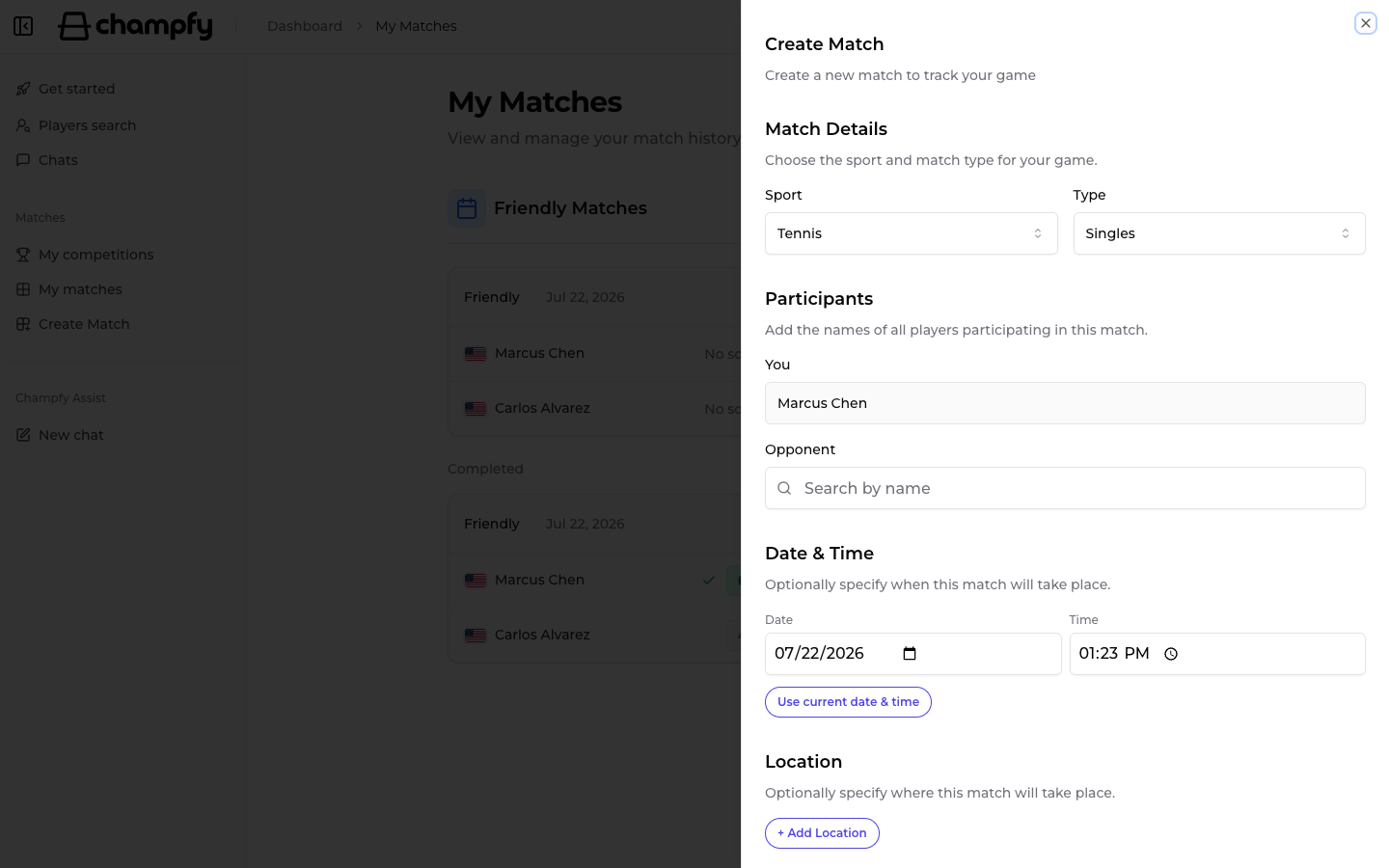
- Sport: defaults to Tennis. Switch to Pickleball if needed.
- Type: Singles or Doubles.
- Participants: Player 1 is locked as You. For singles, add an Opponent. For doubles, add Your Partner, Opponent 1, and Opponent 2. Search by name, pick a Champfy Player, or use an anonymous name from the results.
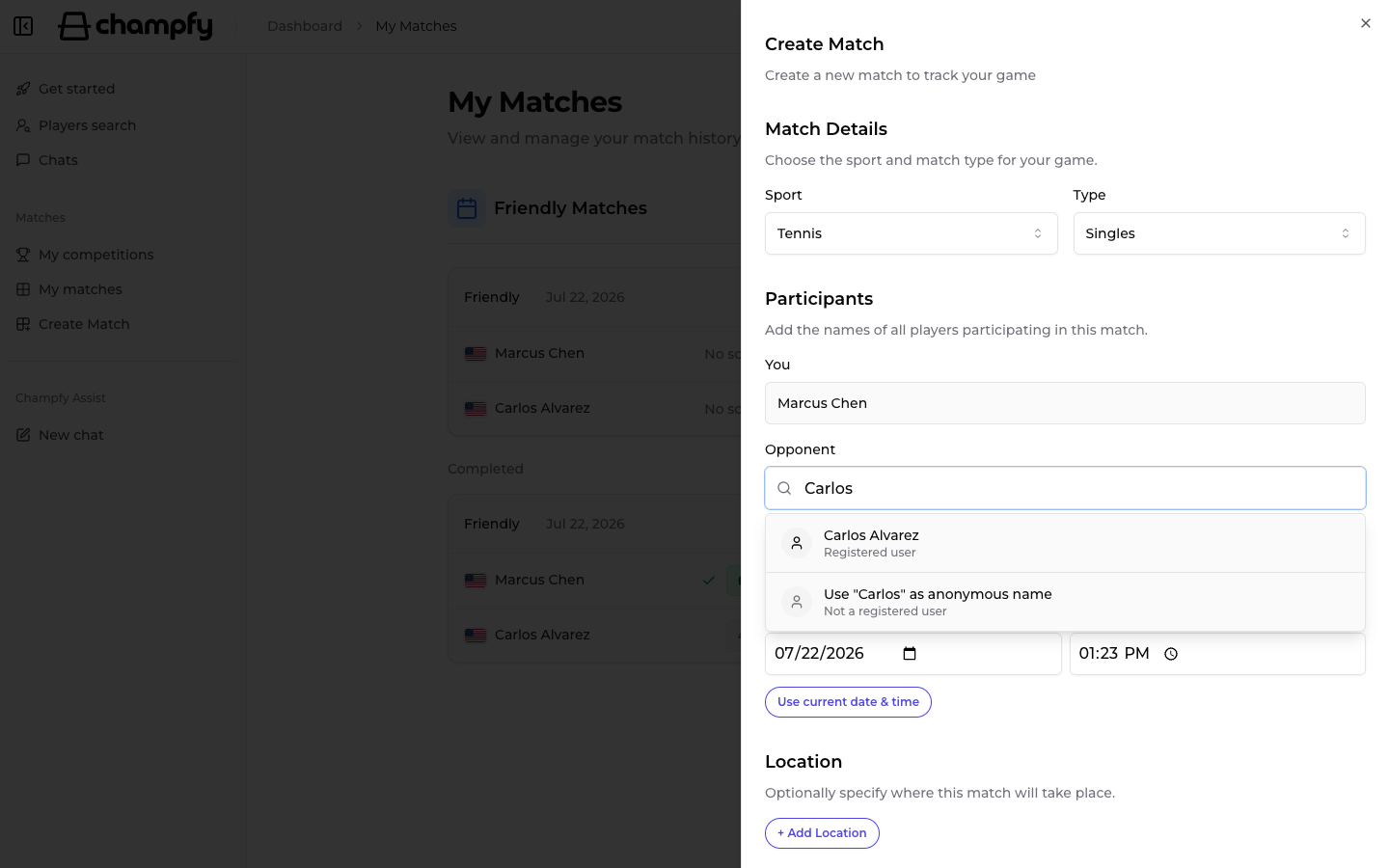
- Date & Time: set when you played or plan to play. Use Use current date & time when you want now.
- Location: optional. Add a facility or court, or leave it blank.
- Select Create Match.
After you create the match
Champfy shows Match created successfully, closes the sheet, and leaves you on My Matches. The new match appears as scheduled. Stay there for the next step; you do not need a separate match detail page.
Ready to track a game?
Open My Matches, create the match, then report the score when you finish playing.
Report the score
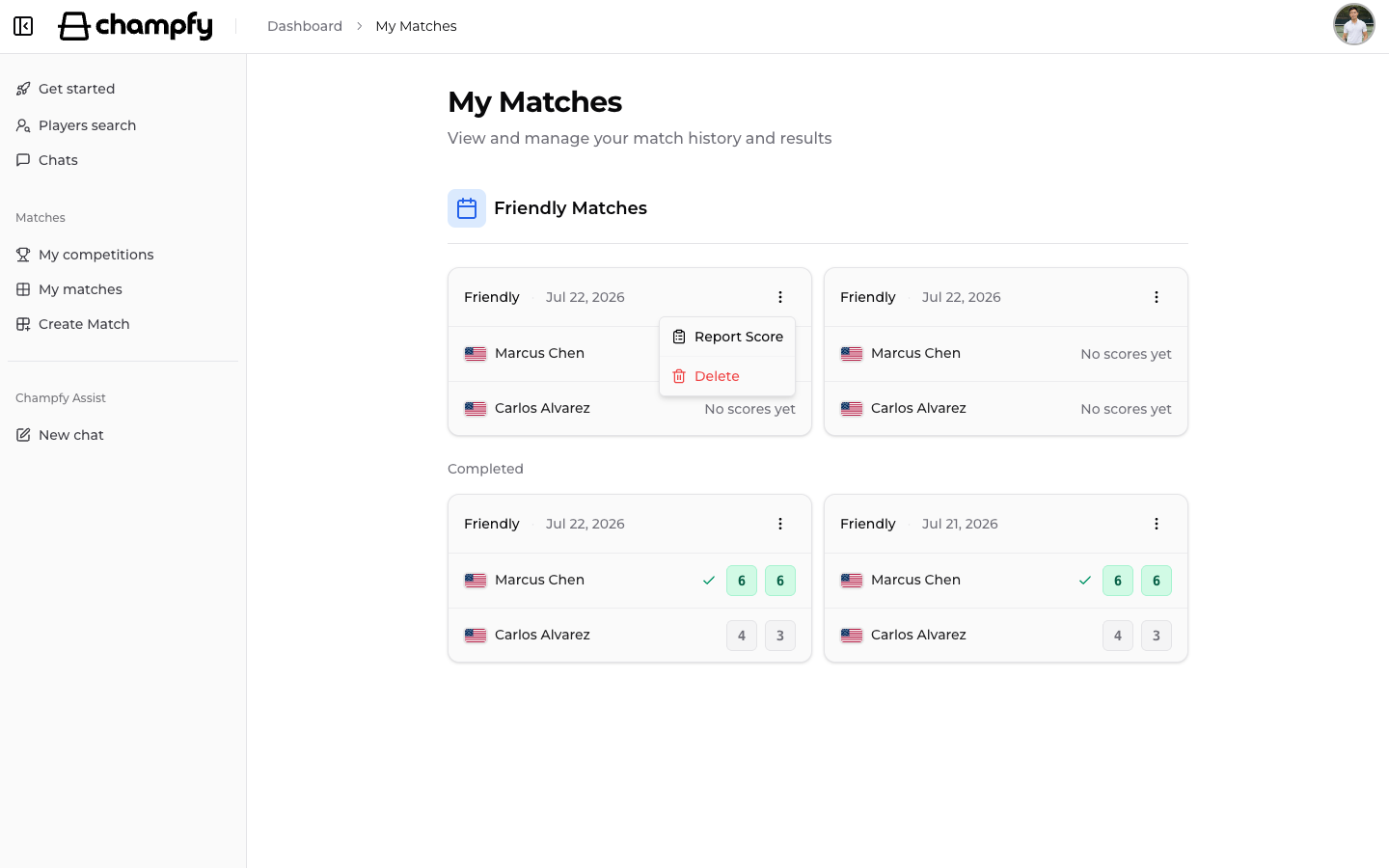
Report Score is available on My Matches for matches that are scheduled or in progress. There is no separate Report Score page. Open it from the match card.
- On My Matches, find the scheduled friendly match.
- Open Match actions on the card.
- Select Report Score.
Enter sets and submit
The Report Match Score sheet shows the match sport, type, and date, then the score grid.
- Enter each set. Champfy starts with two sets (a best-of-three). Use Add set or Remove set if you need a different number (one to five). Check Tiebreak on a set when that set went to a tiebreak.
- Confirm the Winner. Champfy can auto-select from the scores and show Winner automatically selected based on score.
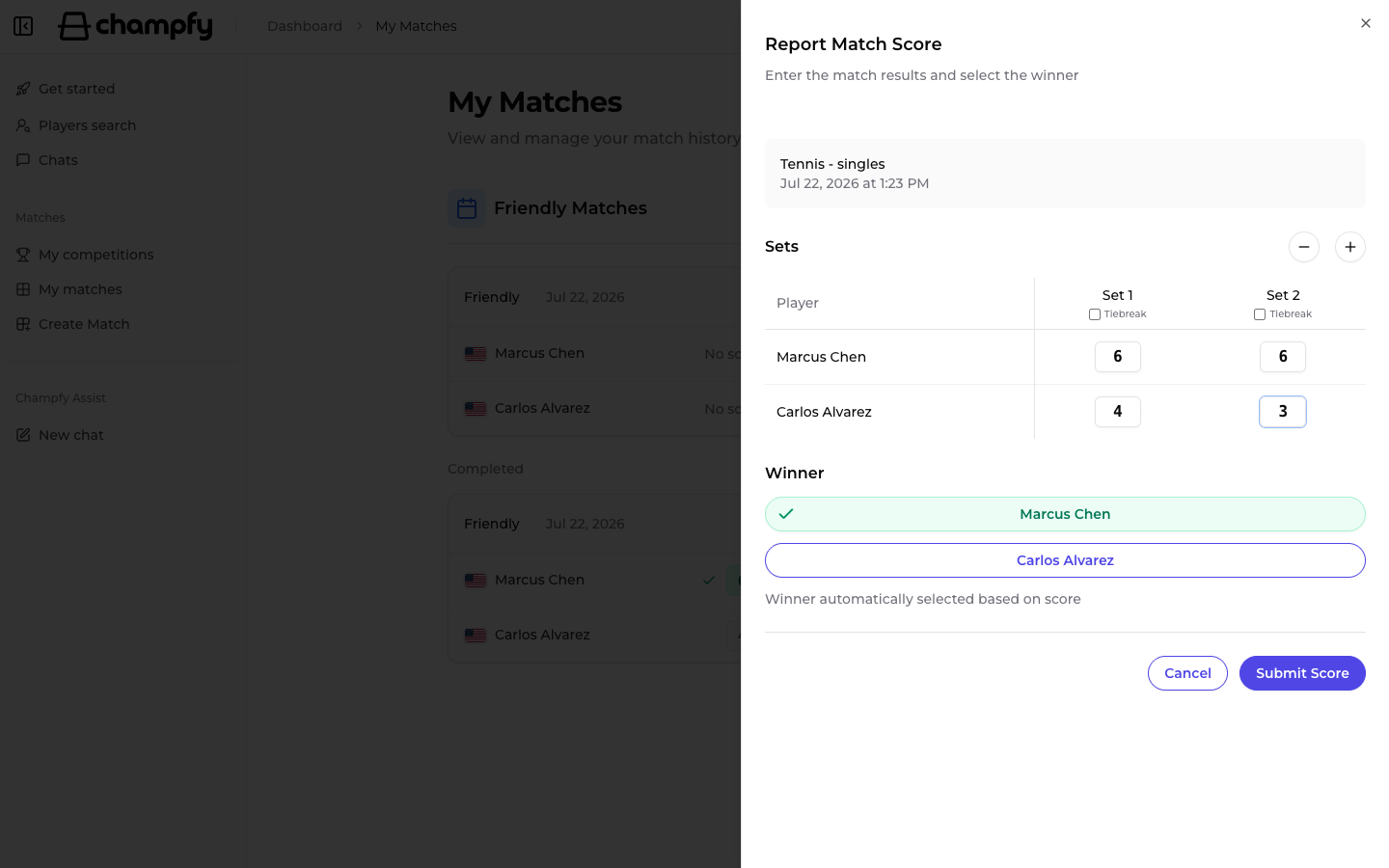
- Select Submit Score.
After you submit the score
Champfy shows Score reported successfully!, closes the sheet, and marks the match completed. The card moves to your completed matches, with the final score on it. Report Score no longer appears for that match. The result also updates the stats shown on each Champfy player's public profile.
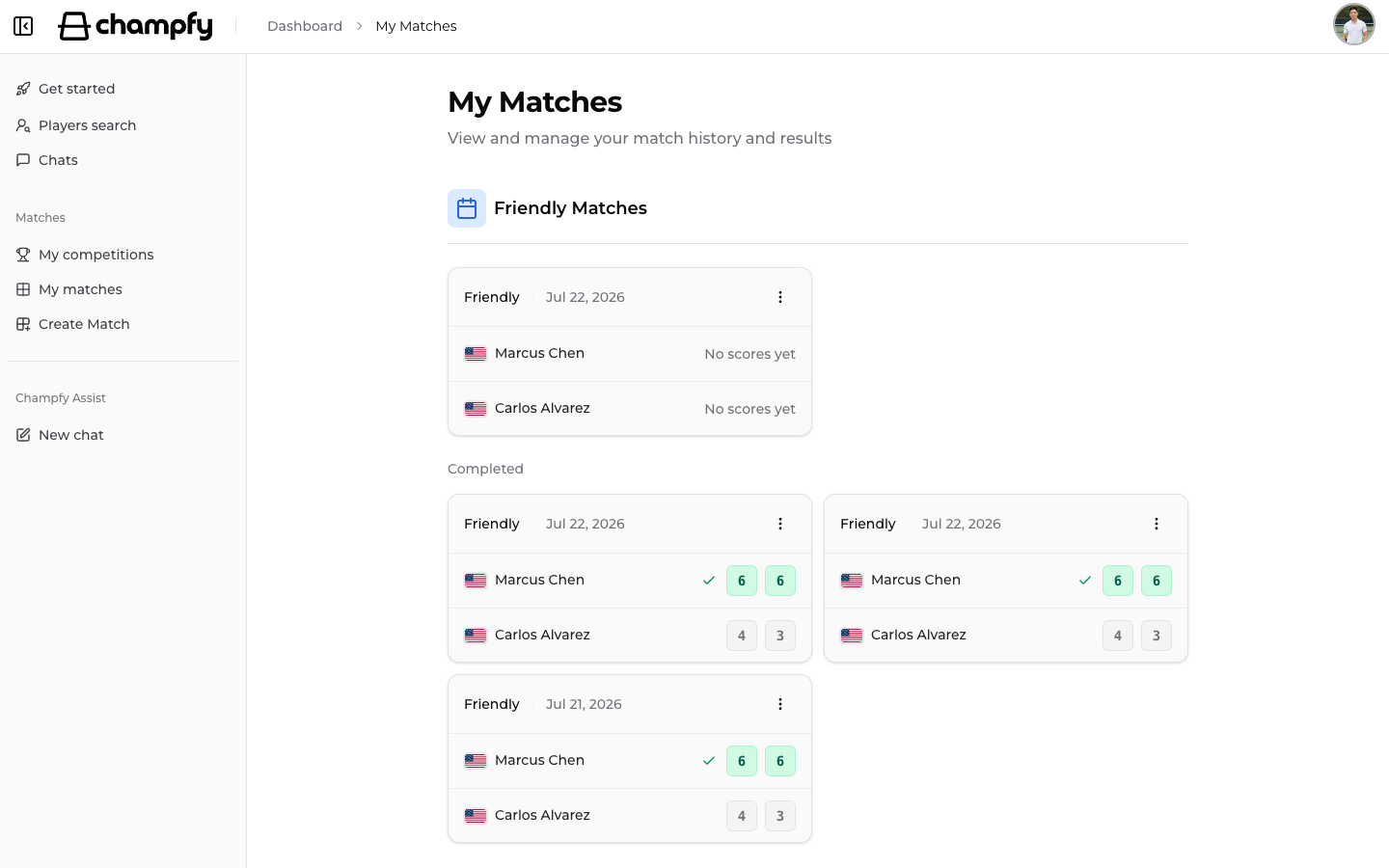
Any participant can submit the result. Champfy does not ask for a second-player confirmation after you report.
Common blockers
You cannot find Create Match
Use Create Match in the sidebar or empty state on My Matches. You must be signed in.
Report Score is missing
Report Score only appears for scheduled or in progress matches. Completed and cancelled matches do not show it. On friendly cards, open it from Match actions, not a separate page.
The winner looks wrong
Adjust the set scores first. When the score implies a winner, Champfy updates the selection and may show the automatic-winner helper. You can still choose the other name before submitting.
You arranged the game in Chat but never created the match
Chat is for planning the session. My Matches is where you record it. After you agree on time and place, create the match so you can report the score later. See how to message a Player for the planning step.
Quick checklist
Create Match → Report Score
When the match is completed, the record stays on My Matches and the stats show on each Champfy player's public profile. For the next game, create a new match the same way.
Track the full match on Champfy
Create the game on My Matches, then report the score when you walk off the court.