“Want to play sometime?” starts a conversation. A sport, place, and two real time options can finish the plan.
Once you find a promising Player on Champfy, use Chat to confirm whether the match fits. You do not need a long introduction. Give the other Player enough information to answer with a clear yes, no, or alternative.
This guide begins on a Champfy Player card. If you do not have a result yet, start with how to find compatible Players near you on Champfy.
After reading this, you'll
- Open Chat from a Player search result
- Write a first message that is easy to answer
- Confirm the sport, session, court, time, and responsibilities
- Find the conversation again from Chats
- Handle common delivery and scheduling problems
Find a Player to message
Use Champfy's public Find Players experience, then sign in to search and start a conversation.
Before you send a message
Check the Player card first. Look at:
- Sport and level
- Approximate distance
- Availability overlap, when shown
- Primary facility, when shared
- Public profile details, when available
Then decide what you can actually offer. Have at least two time options and one practical location in mind. If you need the other Player to book a court, say that directly rather than assuming.
For a first meeting, choose a public sports facility. Keep the conversation on Champfy until you are comfortable sharing other contact details, and tell someone where you plan to play.
Open the conversation
From the authenticated Players search:
- Run a search and choose a Player card.
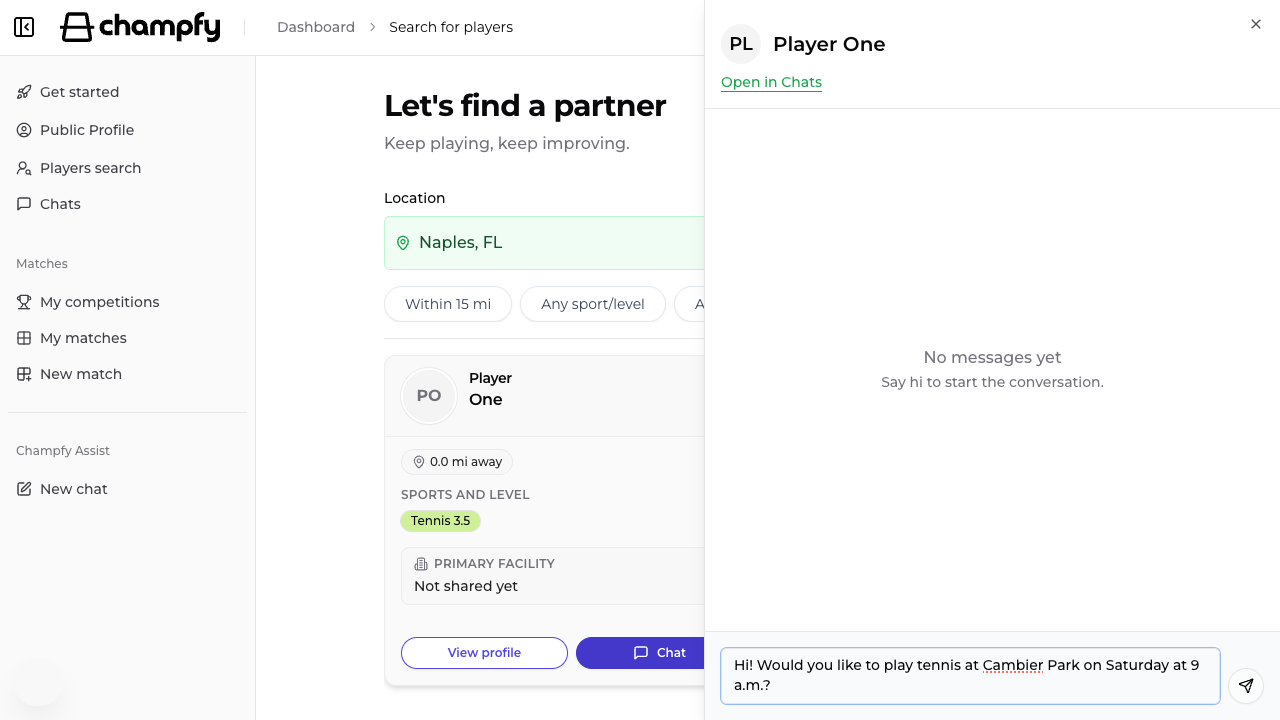
- Select Chat. Some Players may see Magic Chat instead when that experience is enabled.
- Wait for the conversation drawer to open.
- Type in the Message input field.
- Select the send icon or press Enter.
The drawer shows the Player's name and an Open in Chats link. Use that link when you want the full conversation page. You can also select Chats in the dashboard navigation later.
If you want to review the discovery flow first, visit the public Find Players page. The actual Chat controls require a signed-in account.
Write a message that can produce a plan
A strong first message has four parts:
- Sport and purpose: tennis singles, a pickleball game, rally practice, drills, or another clear format
- Location: a public court or facility that makes sense for both Players
- Two time options: specific days and start times
- A direct question: ask whether either option works
For example:
Hi! Would you like to play tennis singles at Cambier Park? I can do Saturday at 9 a.m. or Sunday at 5 p.m. Does either work for you?
You can mention the Player card when it explains why you reached out:
Hi! I saw that we are both around Tennis 3.5 and nearby. Would you be interested in a practice set at Riverside Courts on Tuesday at 6:30 p.m. or Saturday at 10 a.m.?
Avoid sending only “Hi” or “Want to play?” The recipient must then ask for every detail before deciding.
Confirm the match details
An interested reply is not yet a complete plan. Before you leave the conversation, confirm:
- Date and start time
- Facility and court number, if known
- Session type, such as rallying, drills, singles, doubles, or a scored match
- Duration
- Who books and pays for the court
- Who brings balls or other shared equipment
- How you will identify each other at the facility
A concise confirmation can look like this:
Great. Confirming Saturday at 9 a.m. at Cambier Park, Court 3, for one hour of tennis singles. I will reserve the court and bring a new can of balls.
If the facility does not take reservations, say where you will meet and what the backup plan is if the courts are full.
Use Chat without losing the thread
The drawer is useful while you compare a search result. Select Open in Chats for a larger conversation view, or return later through Chats in the dashboard navigation.
Champfy loads recent messages and marks the conversation as read when you view it. New messages appear in the same thread. You do not need to start a second Chat with the same Player to continue planning.
If the first message has not been sent yet, the conversation may show No messages yet. That is expected. The thread becomes useful after one of you sends the first message.
Common blockers
Chat does not open
Wait for the loading state to finish and try once more. If the Player card disappeared because the search changed, rerun the search and open Chat from the result again.
“Couldn't load messages”
Use the retry control when shown. If the drawer continues to fail, close it, open Chats, and select the conversation there. Avoid composing a second plan elsewhere until you know whether the first message was delivered.
“Failed to send message”
Your text remains worth copying before retrying. Check your connection, then send again once. Repeated taps can create duplicate messages if the first request completed slowly.
The send button is disabled
Champfy disables Send when the field is empty or contains only spaces. Type a normal message without a leading slash. Slash commands are not currently sent as ordinary messages.
The Player does not reply
Give them time. One short follow-up is reasonable if the proposed date is approaching:
Checking whether either time works for you. No problem if this week is busy.
If there is still no answer, return to Players search and contact another compatible Player. Do not send repeated pressure messages.
Your schedules do not overlap
Offer one new pair of options or ask which general window works: weekday evenings, Saturday mornings, or Sunday afternoons. If travel is the issue, use Change in Players search to look near a mutually convenient facility.
After the match
Send a brief thank-you and make the next invitation specific if you would play again:
Thanks for the match. Would the same time next Saturday work?
Reliability matters as much as level. Confirm plans, arrive ready, communicate early if something changes, and respect the session you agreed to. The guide to becoming a Player people invite back covers those habits in more detail.
Arrange your first Champfy match
Find a compatible Player, send two concrete time options, and confirm the complete plan in Chat.