Champfy can only make a useful introduction when it knows where you play and the level you can sustain in a match.
Setting your sport level is one part of Champfy's Onboarding. You also need to complete your personal details, including a supported location. Once those required steps are complete, Champfy can include you in Player discovery and use your location and level to help other Players judge whether a game fits.
This guide covers the current Tennis and Pickleball level controls. If you are unsure which tennis number to choose, start with the tennis level self-assessment before changing your settings.
After reading this, you'll
- Know which account details make you discoverable in Player search
- Set or update your Tennis or Pickleball level
- Confirm that your location is complete
- Understand the difference between Onboarding and a Public profile
- Know what to check when Champfy still says your setup is incomplete
Set up your Champfy account
Create an account, add your location and sport level, then start looking for nearby Players.
Before you start
You need a confirmed Champfy account. Have these two details ready:
- A supported home location. Champfy uses saved coordinates to calculate distance between Players. Your exact street address is not shown on a Player card.
- A realistic sport level. Choose the level you play at now, not the level you hope to reach next.
For Tennis, Champfy uses numeric levels from 1.0 to 7.0. The descriptions under the controls explain what each level generally looks like. Pickleball has its own tab and level descriptions.
Your level is a matching signal, not a permanent rank. You can return to Settings and update it as your play changes.
Follow the Onboarding path
After you sign in, select Get started in the dashboard navigation. Champfy shows the setup sequence:
- Create an account
- Complete your profile
- Set your sports levels
- Search for Players near you
The first three steps are required Onboarding. The search step is the next action you can take after setup.
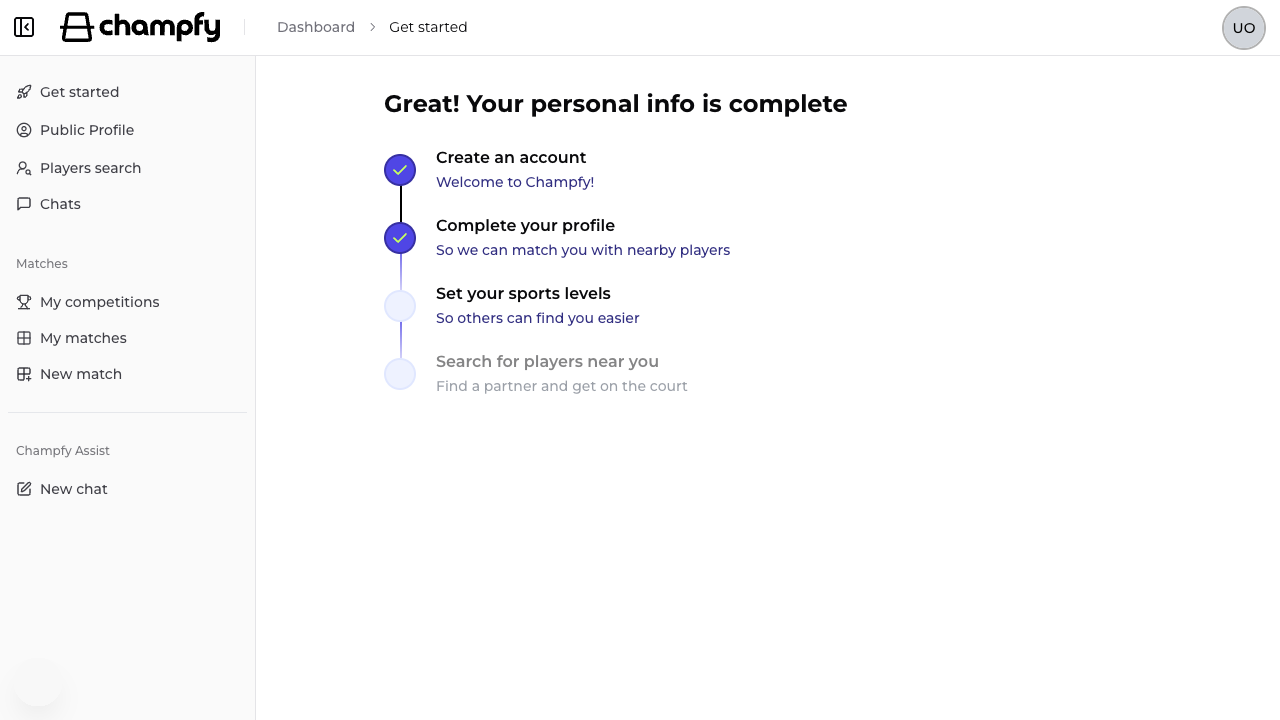
If Complete your profile is unfinished, open it and add your personal details and location first. Select an address from the location search when possible so Champfy can save the coordinates needed for nearby search. Entering city text without usable coordinates may leave search unavailable.
Set your sport level
You can open the level controls from either Get started or Settings → Sports Level.
From Settings:
- Sign in to Champfy.
- Open Settings from your account menu.
- Select Sports Level.
- Choose the Tennis or Pickleball tab.
- Select one level. Read the description shown below the level buttons.
- Select Save.
The Save button stays disabled until you make a change. After a successful save, Champfy confirms the update and closes the editor.
Choosing an honest starting level
Use recent match play rather than your best practice session. For Tennis, consider whether you can:
- Start points reliably with a serve and return
- Sustain a rally at the pace used by Players at that level
- Direct the ball intentionally, not only make contact
- Keep those skills when the score matters
If two levels seem possible, choose the one that describes what you repeat most often. You can revise it after a few matches. The full tennis level guide explains the Champfy-style numeric range alongside broader beginner, intermediate, and advanced descriptions.
What “discoverable” means on Champfy
Finishing Onboarding makes your Player information eligible for Champfy's authenticated discovery experience. Other signed-in Players can search near their location and may see:
- Your name
- Approximate distance
- Your saved sports and levels
- Your primary facility, if you add one
- A Public profile link, if you claim a Public profile
A Public profile is separate. It gives you a shareable handle and public Player page. You can claim one from Public Profile in the dashboard navigation, but it does not replace the personal details and sport levels required by Onboarding.
Use the public Find Players page to see how Champfy introduces the discovery experience before sign-in.
Common blockers
Champfy says setup is incomplete
Return to Get started and look for the first unfinished required step. A sport level alone is not enough; your personal details and location must also be complete.
Your location cannot be used
Open Settings → Personal Data. Search for your address and select a supported result. Champfy currently rejects unsupported countries. Save the form before returning to Player search.
You do not know your exact level
Use the level descriptions in the editor and choose the closest honest estimate. Tennis Players can also take the tennis skill level quiz. A self-selected Champfy level is a discovery aid, not an official NTRP or UTR rating.
Save is disabled
The button is disabled when nothing changed. Select a different level first. If you opened the editor only to check your current value, close it without saving.
You are not seeing Players at your level
Completing your own sport level helps others understand your game, but search results also depend on who has joined nearby. Try a wider distance or search without an exact level before assuming your setup failed.
Check your setup
Before moving on, confirm:
- Your Get started page shows the personal-information and sport-level steps complete
- Settings → Sports Level shows the level you intended
- Your saved location is correct
- You can open Players search without a missing-location message
Once those checks pass, continue with how to find compatible Players near you on Champfy.
Ready to find a Player?
Finish Onboarding, then search by location, distance, sport, and level.